IPTV UK Setup Guides & Tutorials

Looking for an easy IPTV UK setup? Learn how to install and configure our premium streaming service on your favorite devices. Choose your device below to get started in minutes!

📱 Android Smartphone and Tablet

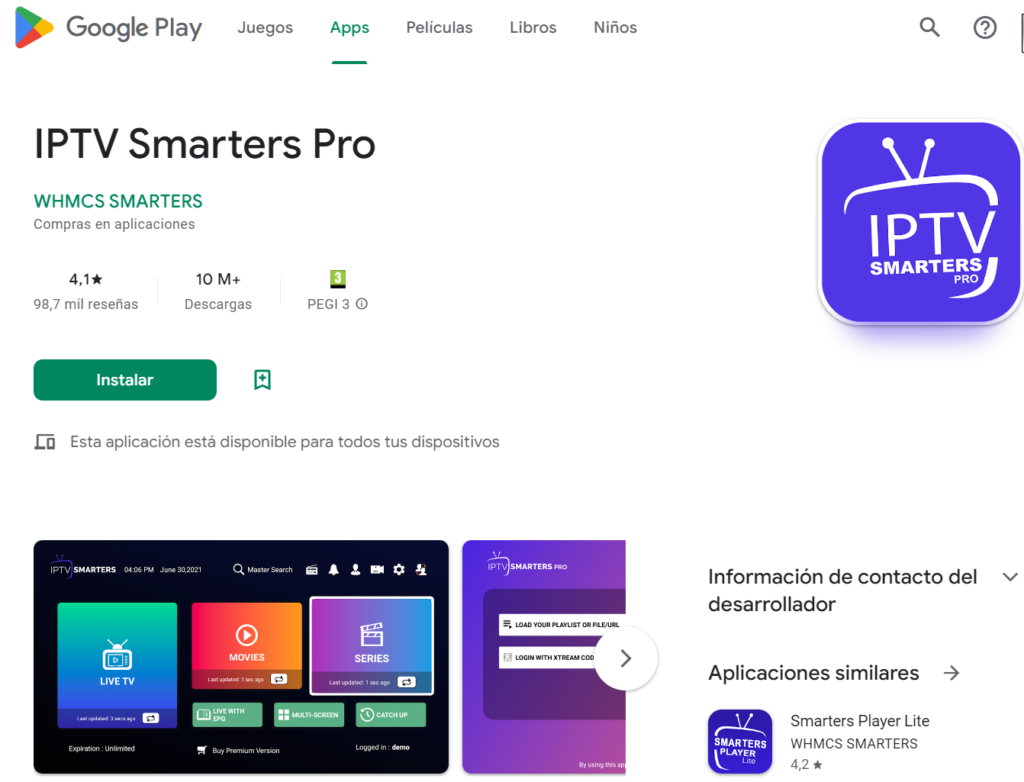
Step-by-step guide for installing your premium IPTV UK Best service. Recommended App: IPTV Smarters Pro (Free download from the Google Play Store).

✅ 1. Download IPTV Smarters Pro

Open the Google Play Store on your Android device.

Search for IPTV Smarters Pro.

Click Install and wait for the app to download.

IPTV UK Setup

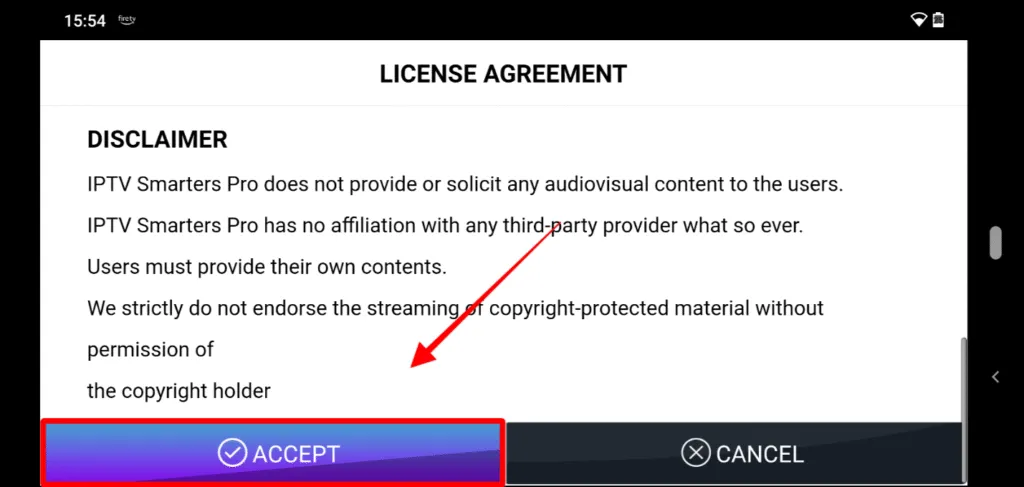
✅ 2. Open the App and Accept the Terms

Open IPTV Smarters Pro.

Accept the terms and conditions if prompted

IPTV UK Setup

✅ 3. Enter Your IPTV Details

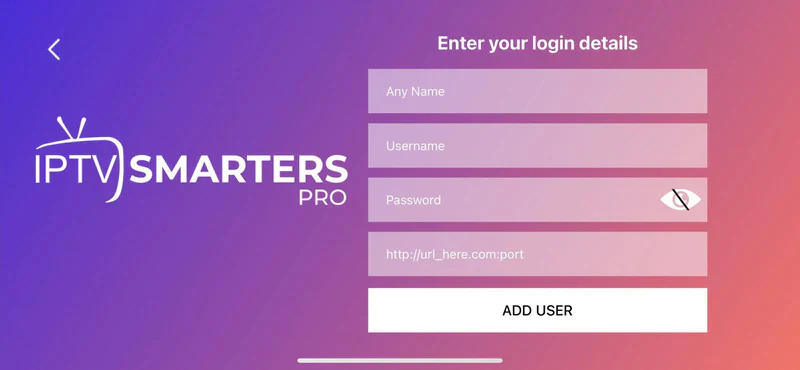
Click on “Login with Xtream Codes API”.

Enter the details you received from Ultra IPTV Ireland in your email:

Playlist Name: (e.g., Ultra IPTV Ireland)

Username: (Enter your provided username)

Password: (Enter your provided password)

Server URL: (Enter the provided URL)

Click on Add User.

IPTV UK Setup

✅ 4. Start Watching

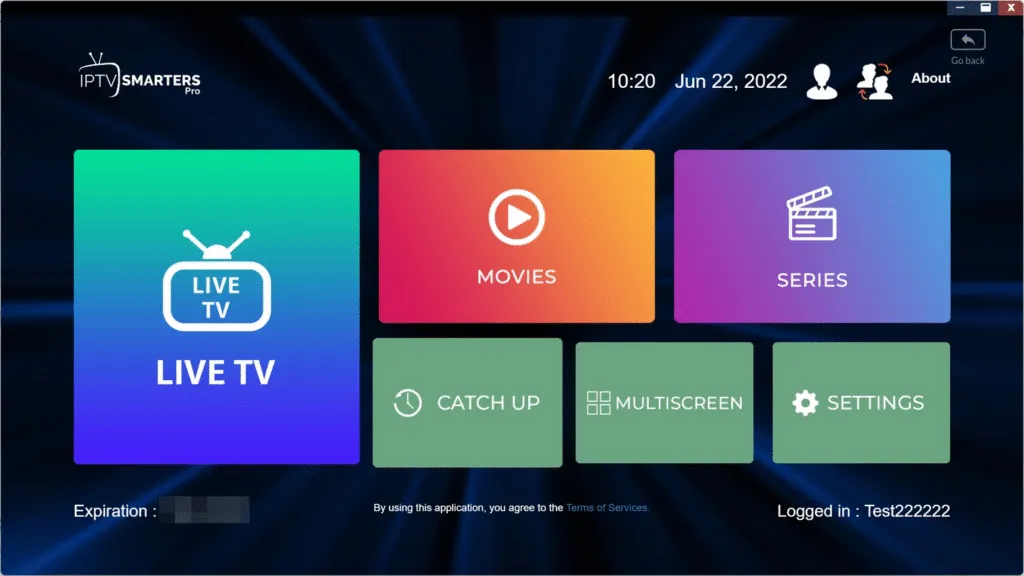
After logging in, the app will automatically load your channels, movies, and series.

Select Live TVMovies, or Series and enjoy your subscripti

IPTV UK Setup

💡 Tip:

Use a stable Wi-Fi connection for the best picture quality. A VPN is recommended for extra security and privacy.

📱 iPhone & iPad

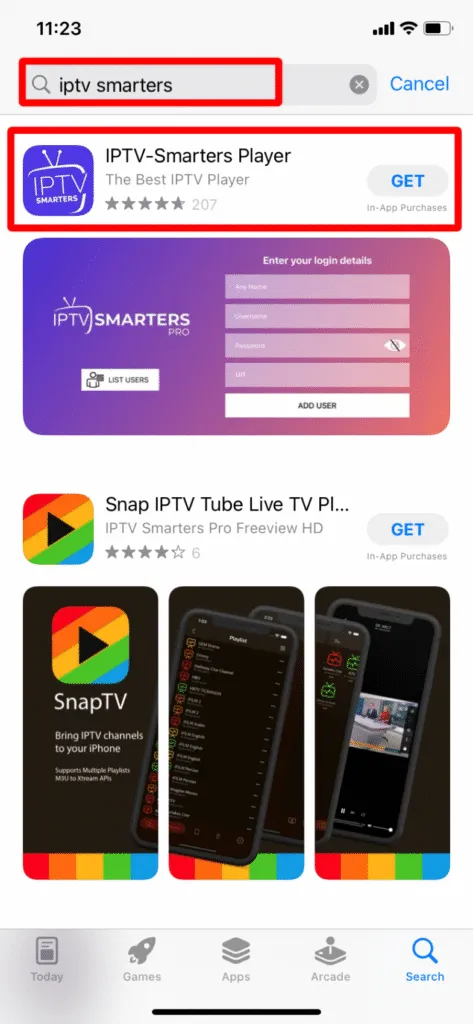
Step-by-step guide for installing IPTV. App: IPTV Smarters Player (free via the App Store)

✅ 1. Download IPTV Smarters Player

Open the App Store on your iPhone or iPad.

Search for IPTV Smarters Player.

Tap ‘Get’ or ‘Download’ to install the app.

IPTV UK Setup

✅ 2. Open the App and Accept the Terms

Open the IPTV Smarters Player app.

Accept the terms and conditions if prompted.

IPTV UK Setup

✅ 3. Log in with Your IPTV Details

Choose “Login with Xtream Codes API”.

Enter the details you received from Ultra IPTV Ireland:

Any Name: (e.g., IPTV UK Best)

Username: (Enter your provided username)

Password: (Enter your provided password)

URL: (Enter the provided Server URL)

Tap on Add User.

IPTV UK Setup

✅ 4. Start Watching

The app will automatically load your channel list and VODs.

Choose between Live TVMovies, or Series. Enjoy watching!

IPTV UK Setup

💡 Tip:

Use a stable Wi-Fi connection for the best picture quality. A VPN is recommended for extra security and privacy.

📺 Samsung Smart TV

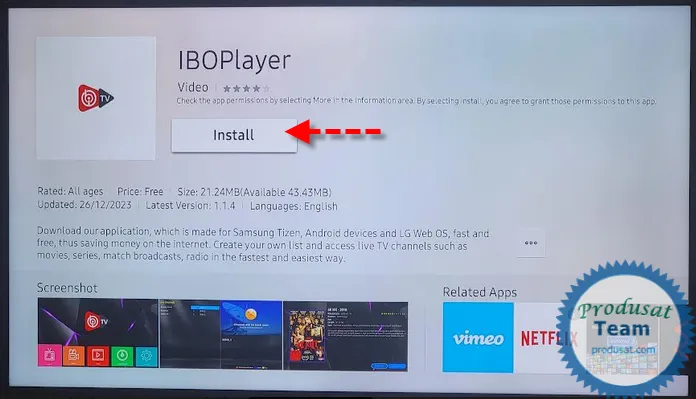
Step-by-step guide to installing IPTV with Ibo Player.

✅ 1. Download Ibo Player

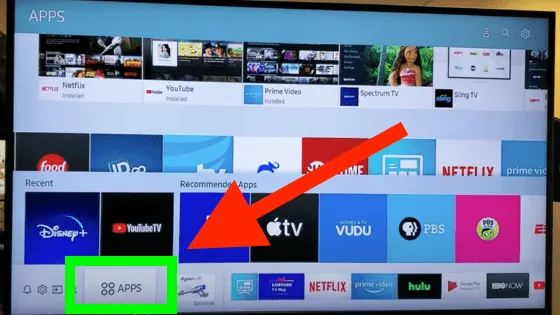
Turn on your Samsung Smart TV.

Open the Apps menu (Samsung Smart Hub).

IPTV UK Setup

Turn on your Samsung Smart TV.

Open the Apps menu (Samsung Smart Hub).

IPTV UK Setup

✅ 2. Open the App and Note the Device ID & Key

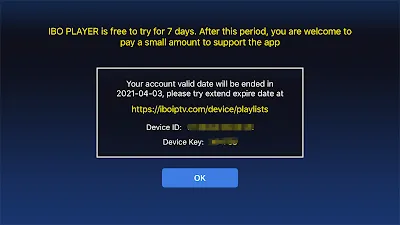
Start Ibo Player.On the home screen, you will see a Device ID

 and a Device Key (sometimes called App ID). Write both of them down.

IPTV UK Setup

✅ 3. Activate and Upload Your IPTV List

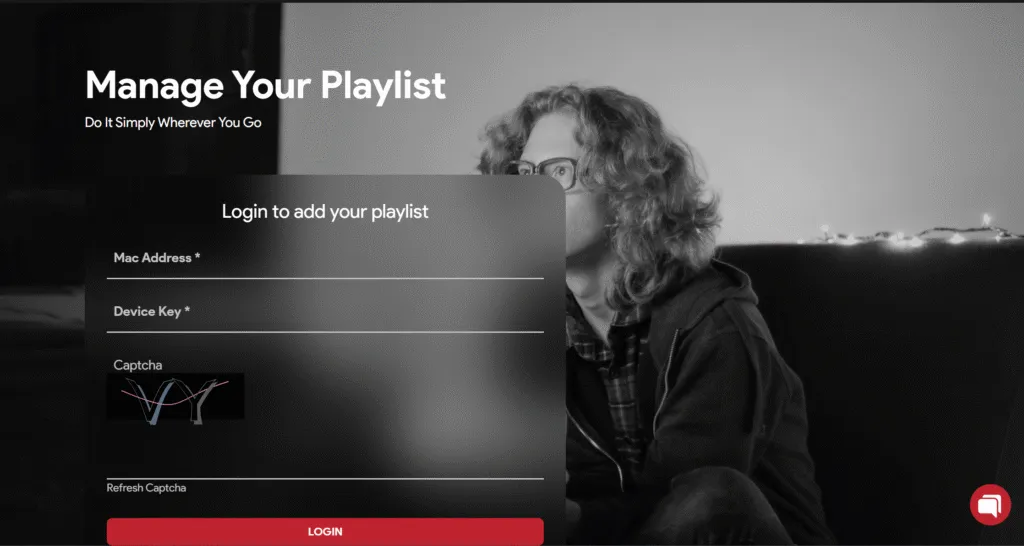
Go to the official Ibo Player Portal on your computer or smartphone: https://iboplayer.com/device/login

Enter the Device ID and Device Key.

Click on Login.

IPTV UK Setup

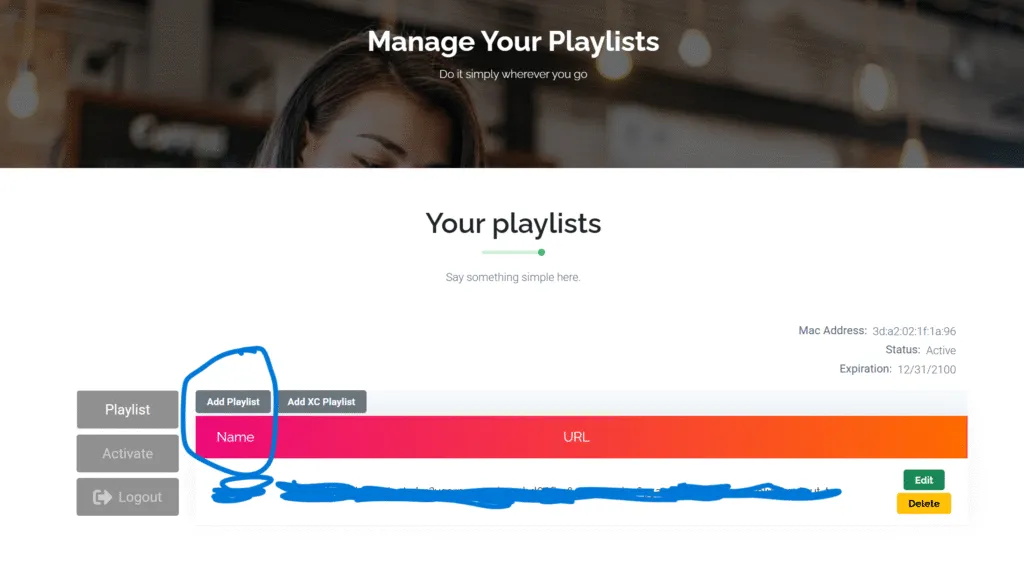
Add a new playlist:

IPTV UK Setup

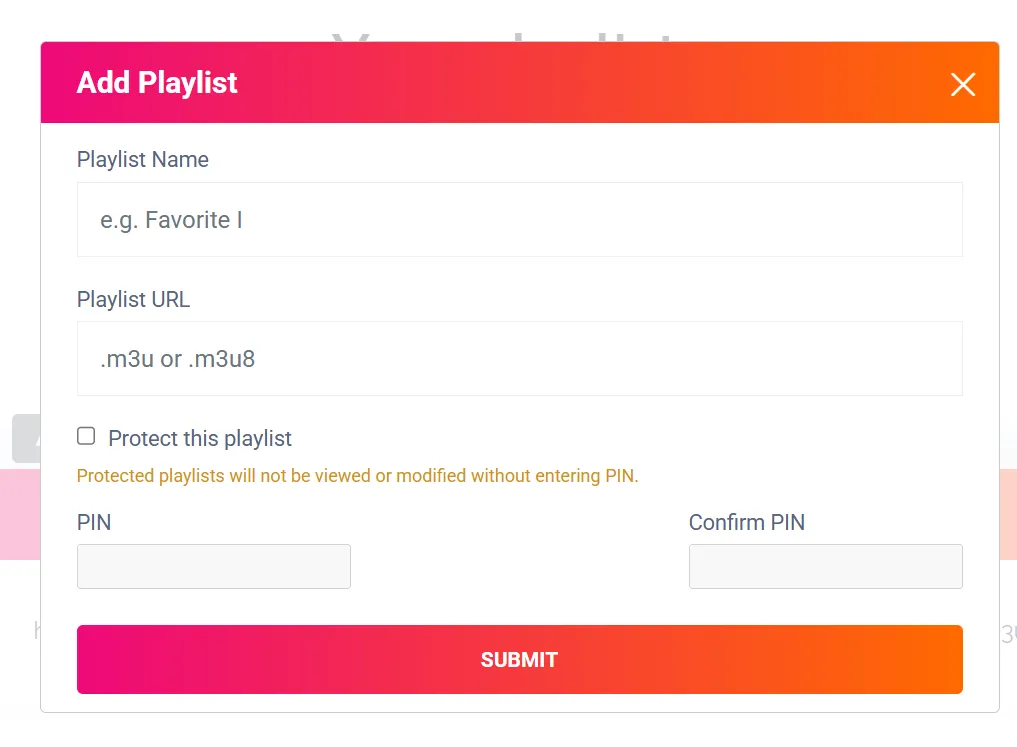
Give the playlist a name (for example: Ultra IPTV Ireland).

Paste the M3U URL you received from Ultra IPTV Ireland.

Click Save.

IPTV UK Setup

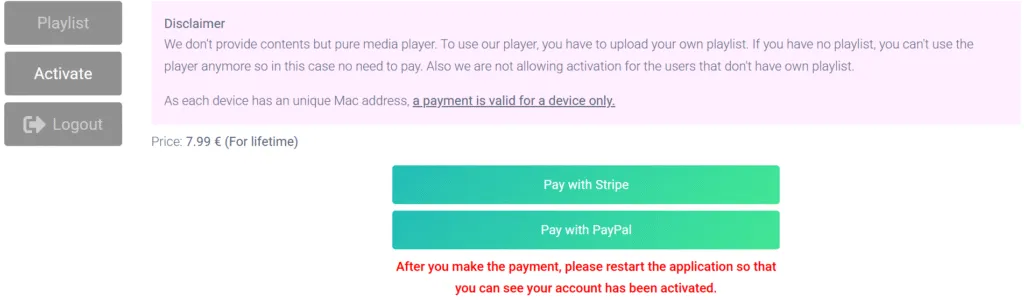
✅ 4. Activate Ibo Player

Ibo Player offers a free trial period (usually 7 days).

For unlimited use, you must activate the app once via their website. Follow the payment instructions on the Ibo Portal.

IPTV UK Setup

✅ 5. Restart the App

Go back to your TV.

Close Ibo Player completely.

Restart the app: your channel list will load automatically.

Done! Enjoy your IPTV subscription immediately.

💡 Tip:

With Ibo Player, you get a user-friendly interface and fast channel switching. Perfect for Samsung Smart TVs!

📺 LG Smart TV

Step-by-step guide to installing IPTV with Ibo Player.

✅ 1. Download Ibo Player

Turn on your LG Smart TV.

Open the LG Content Store.

Search for Ibo Player.

Select and install the app.

IPTV UK Setup

2. Open the App and Note the App-ID & Device-ID

Start Ibo Player.

On the home screen, you will see a Device ID and a Device Key (sometimes called App ID). Write both of them down.

IPTV UK Setup

✅ 3. Activeer en Upload je IPTV Lijst

Ga op je computer of smartphone naar de officiële Ibo Player Portal: https://iboplayer.com/device/login

Voer de Device ID en Device Key in.

Klik op Login.

IPTV UK Setup

Add a new playlist:

IPTV UK Setup

Give the playlist a name (for example: IPTV UK BEST).

Paste the M3U URL you received from IPTV UK BEST.

Click Save.

IPTV UK Setup

✅ 4. Activate Ibo Player

Ibo Player offers a free trial period (usually 7 days).

For unlimited use, you must activate the app once via the website. Follow the payment instructions on the Ibo Portal.

IPTV UK Setup

✅ 5. Restart the App

Go back to your TV.

Close Ibo Player completely.

Restart the app: your channel list will load automatically.

Done! Enjoy your IPTV UK BEST subscription immediately.

💡 Tip:

Lorem ipsum dolor sit amet, consectetur adipiscing elit. Ut elit tellus, luctus nec ullamcorper mattis, pulvinar dapibus leo.

📺 Android Smart TV (e.g., Sony, Philips...)

Step-by-step guide to installing IPTV with Ibo Player.

✅ 1. Download Ibo Player

Turn on your Android Smart TV.

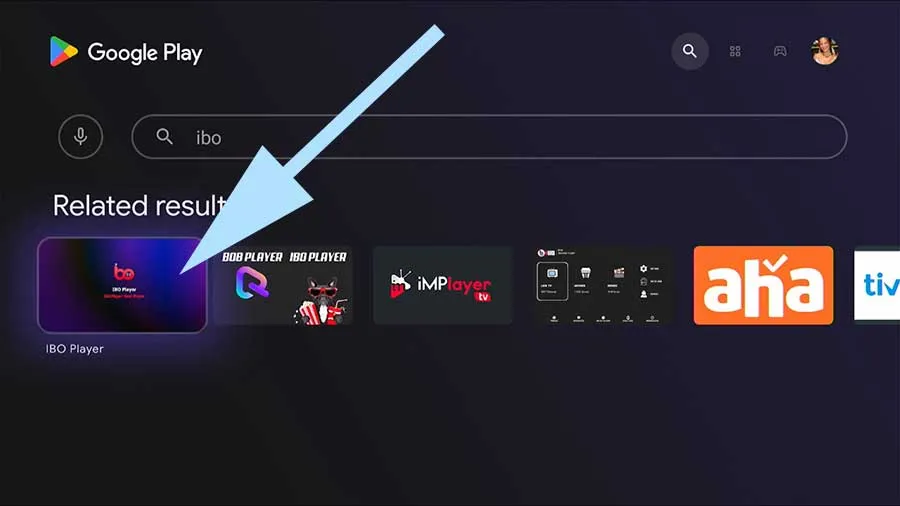
Open the Google Play Store.

Search for Ibo Player.

Download and install the app.

✅ 2. Open the App and Note the App-ID & Device-ID

Start Ibo Player.

On the home screen, you will see a Device ID and a Device Key (sometimes called App ID). Write both of them down.

IPTV UK Setup

✅ 3. Activate and Upload Your IPTV List

Go to the official Ibo Player Portal on your computer or smartphone: https://iboplayer.com/device/login

Enter the Device ID and Device Key.

Click on Login

IPTV UK Setup

Add a new playlist:

IPTV UK Setup

Give the playlist a name (for example: Ultra IPTV Ireland).

Paste the M3U URL you received from Ultra IPTV Ireland.

Click Save.

IPTV UK Setup

✅ 4. Activate Ibo Player

Ibo Player offers a free trial period (usually 7 days).

For unlimited use, you must activate the app once via the website. Follow the payment instructions on the Ibo Portal.

IPTV UK Setup

✅ 5. Restart the App

Go back to your TV.

Close Ibo Player completely.

Restart the app: your channel list will load automatically.

Done! Enjoy your Ultra IPTV Ireland subscription immediately.

💡 Tip:

Ibo Player is one of the most popular apps for Android Smart TVs (such as Sony and Philips…) and offers excellent stability for your IPTV subscription.

💻 PC & Laptop (Windows/Mac)

Step-by-step guide to watching IPTV via the Ibo Player App.

✅ 1. Download the Ibo Player App

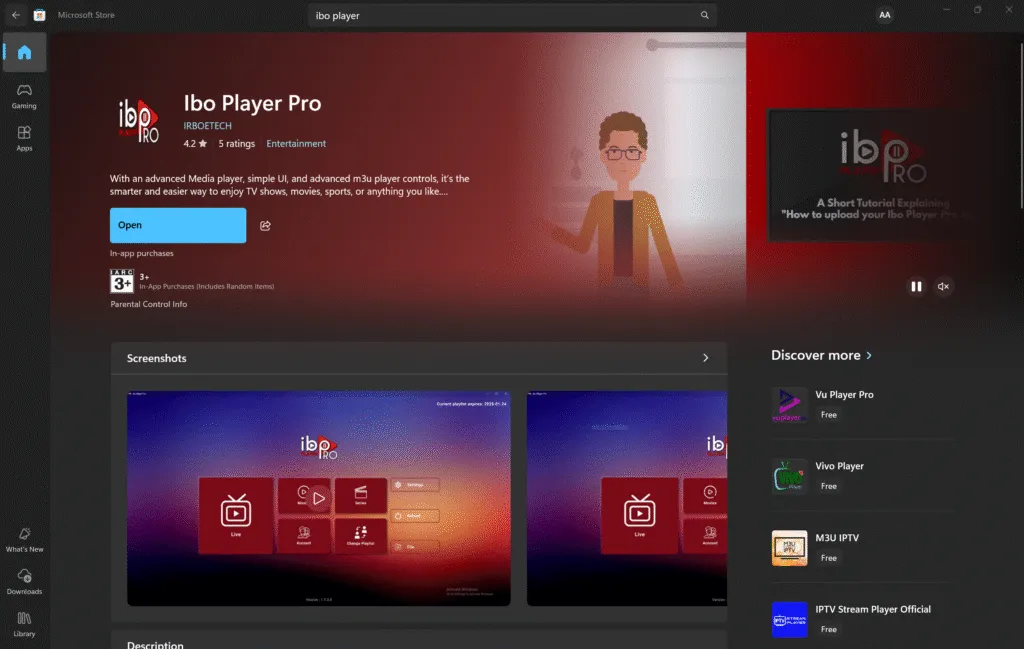
Open the Microsoft Store on your PC or laptop.

Search for Ibo Player.

Click Download and install the app.

For Mac (macOS):

Go to the official website: https://iboiptv.com/

Download the Mac version there and install it.v

IPTV UK Setup

✅ 2. Open the App and Note the App-ID & Device-ID

Start Ibo Player.

On the home screen, you will see a Device ID and a Device Key (sometimes called App ID). Write both of them down.

IPTV UK Setup

✅ 3. Activate and Upload Your IPTV List

Lorem ipsum dolor sit amet, consectetur adipiscing elit. Ut elit tellus, luctus nec ullamcorper mattis, pulvinar dapibus leo.

Go to the official Ibo Player Portal on your computer or smartphone: https://iboplayer.com/device/login

Enter the Device ID and Device Key.

Click on Login.

IPTV UK Setup

Add a new playlist:

IPTV UK Setup

Give the playlist a name (for example: Ultra IPTV Ireland).

Paste the M3U URL you received from Ultra IPTV Ireland.

Click Save.

IPTV UK Setup

✅ 4. Activate Ibo Player

Ibo Player offers a free trial period (usually 7 days).

For unlimited use, you must activate the app once via the website. Follow the payment instructions on the Ibo Portal.

IPTV UK Setup

✅ 5. Restart the App

Go back to your PC.

Close Ibo Player completely.

Restart the app: your channel list will load automatically.

Done! Enjoy your iptv uk best subscription immediately.


💡 Tip:

With the Ibo Player App, you can watch safely and stably on your PC or laptop, with support for HD & 4K streams.

📺 MAG Box

Step-by-step guide to setting up IPTV on your MAG Box.

✅ 1. Connect your MAG Box to the internet

Connect the MAG Box to your TV via HDMI.

✅ 2. Note down your MAC address

Go to Settings > System Settings > Device Info.

You will see your MAC address (usually starts with 00:1A:79:…).

📩 Send your MAC address to us via email, WhatsApp, or the contact form.

We will activate your IPTV line based on this address.

✅ 3. Open the settings menu

Go to System Settings > Servers > Portals.

✅ 4. Configure the IPTV Portal

For Portal 1 Name, enter for example: iptv uk best.

For Portal 1 URL, enter the link you receive from us after activation.

✅ 5. Save the settings and restart

Click OK or Save.

Restart the MAG Box (unplug it and plug it back in, or do it via the menu).

✅ 6. Enjoy IPTV

After restarting, your box will automatically load all channels and VODs.

Use your remote control to zap through and enjoy stable IPTV streams!